NVIDIA Jetson Orin Nano Guide: From Unboxing to Running Model Benchmarks

- Published on
- Domain
- Embedded AI and infrastructure
- Focus
- Jetson Orin Nano setup, runtime validation, TensorRT benchmarking, and telemetry
- Scope
- JetPack, SSH access, benchmark automation, TensorRT, PyTorch CPU baselines, power modes, and result handling
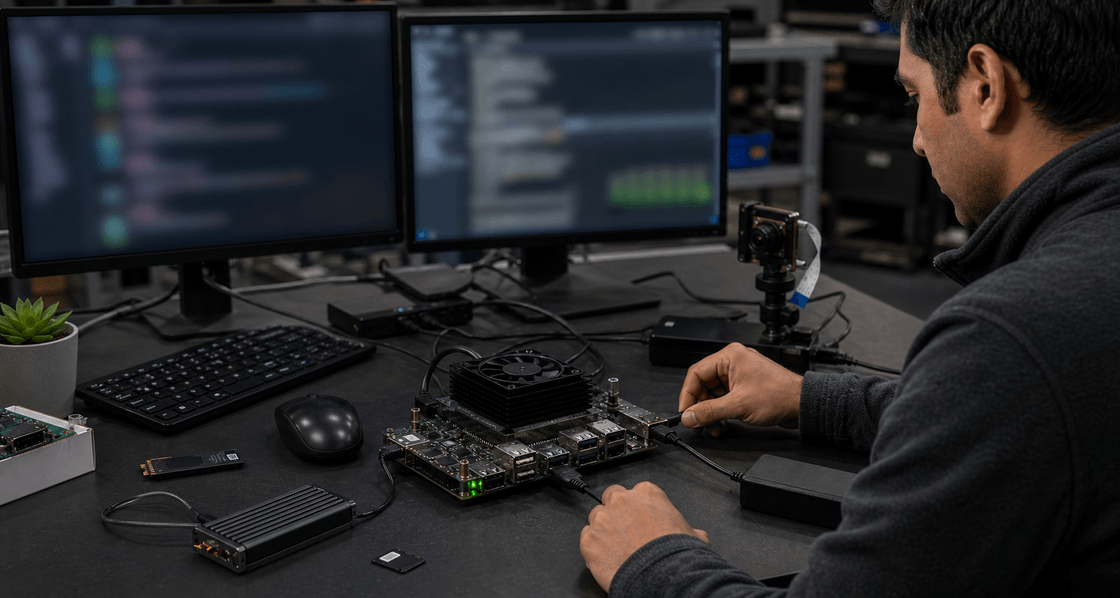
NVIDIA Jetson Orin Nano Guide: From Unboxing to Running Model Benchmarks
The NVIDIA Jetson Orin Nano Developer Kit is one of the more approachable ways to do modern edge AI work locally. It provides an ARM Linux system, CUDA support, TensorRT acceleration, camera interfaces, GPIO, NVMe support, and enough GPU performance to run meaningful embedded AI benchmarks.
This guide is based on an actual bring-up and benchmarking workflow rather than a theoretical checklist. The validated path used a JetPack 6-era Orin Nano environment, SSH-based development, a board-local benchmark repo, runtime verification scripts, TensorRT engine builds, PyTorch CPU comparison baselines, tegrastats telemetry, /usr/bin/time -v, and postprocessed benchmark summaries.
The goal is still generic: the exact repo name, scripts, models, and paths can be changed. The important part is the workflow.
Hardware used
The Jetson Orin Nano Developer Kit package typically includes:
- Jetson Orin Nano module
- reference carrier board
- preinstalled Wi-Fi/Bluetooth module
- Wi-Fi antenna
- 19V power supply
- quick-start material
Additional required items:
- 64GB or larger microSD card
- DisplayPort monitor, or a known-good DisplayPort-to-HDMI adapter
- USB keyboard
- USB mouse
- Ethernet or Wi-Fi network access
- host computer for writing the microSD card
Optional but strongly recommended:
- M.2 NVMe SSD
- active cooling or improved airflow
- stable wired Ethernet during setup
- USB or CSI camera if computer vision workloads are part of the benchmark suite
The microSD card is fine for first boot and basic setup. For repeated benchmark work, larger model artifacts, TensorRT engine files, raw result directories, Docker images, and cache-heavy workflows, NVMe storage is much more comfortable.
Software target
For this workflow, the Orin Nano path is treated as a JetPack 6-era environment:
| Item | Target |
|---|---|
| Board | Jetson Orin Nano |
| OS generation | JetPack 6 era |
| Ubuntu | 22.04 |
| Python | 3.10 |
| TensorRT | 10.x class environment |
| Primary GPU runtime | TensorRT |
| Baseline runtime | PyTorch CPU |
NVIDIA’s Jetson Orin Nano Super Developer Kit positioning highlights 67 sparse INT8 TOPS, a 1024-core Ampere GPU, 32 Tensor Cores, a 6-core Arm Cortex-A78AE CPU, 8GB LPDDR5, 102 GB/s memory bandwidth, support for microSD and NVMe storage, and operation across 7W to 25W modes depending on configuration.
JetPack 6.2 includes Jetson Linux 36.4.3, Linux kernel 5.15, an Ubuntu 22.04 root filesystem, CUDA 12.6, TensorRT 10.3, cuDNN 9.3, VPI 3.2, and support for new Super modes on Jetson Orin Nano and Orin NX.
Jetson Linux 36.4.4, which ships as part of JetPack 6.2.1, is a product-quality release for Jetson Orin Nano and includes fixes related to SDK Manager flashing and Docker 28 compatibility.
The practical rule is simple: keep the Jetson software stack internally consistent. Avoid mixing random desktop CUDA, TensorRT, PyTorch, or ONNX Runtime packages with JetPack-managed Jetson packages unless the versions are known to match the installed L4T release.
Do not collapse different Jetson generations into one runtime path
A major lesson from the actual benchmarking work was that different Jetson generations should not be forced into a single shared software path too early.
A clean split looks like this:
This article focuses on the Orin Nano. The original Jetson Nano can use a similar benchmark structure, but it needs different containers, Python compatibility handling, TensorRT importer expectations, and power sampling methods. Keeping separate repos avoids hiding board-specific incompatibilities behind generic scripts.
Firmware compatibility warning
Fresh Jetson Orin Nano Developer Kits may ship with older factory firmware. Older firmware can create a frustrating setup failure: the board may boot older JetPack images but fail to boot JetPack 6 cleanly.
Common pattern:
NVIDIA’s JetPack installation documentation notes that using JetPack 6 SD card images for the first time may require updating the QSPI bootloaders first.
The practical rule is: reflashing the same JetPack 6 microSD card repeatedly will not fix an outdated QSPI firmware problem.
Flash the microSD card
Download the Jetson Orin Nano Developer Kit SD card image from NVIDIA’s JetPack download path.
If the board already has JetPack 6-compatible firmware, write the JetPack 6 image directly. If the board fails to boot JetPack 6, complete the older-firmware update path first.
Windows host
- Insert the microSD card.
- Open Balena Etcher.
- Select the Jetson Orin Nano image.
- Select the microSD card.
- Start flashing.
- Safely eject the card.
macOS host
- Insert the microSD card.
- Open Balena Etcher.
- Select the Jetson Orin Nano image.
- Select the microSD card.
- Start flashing.
- Eject the card.
Linux host
GUI tools such as Balena Etcher, Raspberry Pi Imager, or GNOME Disks work well. A command-line path also works:
lsblk

# Replace /dev/sdX with the real microSD device.
# Do not use a partition path like /dev/sdX1.
sudo dd if=jetson-orin-nano-image.img of=/dev/sdX bs=64M status=progress conv=fsync

sync
Warning: dd can destroy the wrong disk if the wrong device path is selected.
First boot
Insert the flashed microSD card into the slot on the underside of the module.
Connect:
- DisplayPort monitor
- USB keyboard
- USB mouse
- Ethernet, if available
- 19V barrel power supply
The board powers on when power is connected.
During first boot, Ubuntu asks for:
- EULA acceptance
- language
- keyboard layout
- time zone
- network setup
- username and password
- login configuration
If the board drops into a UEFI shell, shows a black screen, or fails to boot Ubuntu, outdated firmware is one of the first things to check.
Verify the software base
After login, confirm the board state before installing packages or running benchmarks.
cat /etc/os-release
cat /etc/nv_tegra_release
dpkg-query -W nvidia-l4t-core
uname -a
python3 --version
lsblk
df -h
free -h
Also verify that key Jetson tools exist:
which tegrastats || true
which nvpmodel || true
which jetson_clocks || true
which trtexec || true
ls /usr/src/tensorrt/bin/trtexec 2>/dev/null || true
One real issue from the validated setup was that trtexec existed but was not on PATH. A robust script should detect both:
trtexec
/usr/src/tensorrt/bin/trtexec
The second path is important because TensorRT engine build scripts may fail even though TensorRT is installed correctly.
Enable SSH and verify network access
Enable SSH on the board:
sudo systemctl enable ssh
sudo systemctl start ssh
Find the board IP address:
ip addr show
ip route get 8.8.8.8
For Wi-Fi-specific debugging:
nmcli -f GENERAL.STATE,GENERAL.CONNECTION,IP4.ADDRESS device show <wifi-iface>
Connect from the host machine:
ssh <user>@<orin-ip>
If remote SSH appears to hang but ssh localhost works on the board itself, the problem is probably the host-side network path, not the board’s SSH daemon.
One useful lesson from the validated setup: Windows Internet Connection Sharing and WSL loopback do not always behave the same way. If a PowerShell loopback proxy works but WSL 127.0.0.1 does not reach the same listener, use ssh.exe from WSL or connect to the Windows host IP instead of assuming WSL loopback maps to the Windows loopback listener.
Install baseline tools
Install a practical baseline:
sudo apt update

sudo apt install -y \
  build-essential \
  git \
  curl \
  wget \
  htop \
  nano \
  vim \
  python3-pip \
  python3-venv \
  python3-dev \
  cmake \
  pkg-config \
  unzip \
  time \
  net-tools \
  openssh-server \
  tmux
The time package matters because benchmark scripts may depend on /usr/bin/time -v for maximum resident set size, elapsed time, CPU usage, and other process-level metadata.
Verify it explicitly:
/usr/bin/time -v true
Optional NVMe setup
NVMe storage is strongly recommended for model files, engine files, benchmark datasets, and raw result directories.
Check the drive:
lsblk
Assuming the drive appears as /dev/nvme0n1:
sudo parted /dev/nvme0n1 --script mklabel gpt
sudo parted /dev/nvme0n1 --script mkpart primary ext4 0% 100%
sudo mkfs.ext4 -F /dev/nvme0n1p1
sudo mkdir -p /mnt/nvme
sudo mount /dev/nvme0n1p1 /mnt/nvme
Get the UUID:
sudo blkid /dev/nvme0n1p1
Add it to /etc/fstab:
UUID=YOUR_UUID_HERE /mnt/nvme ext4 defaults,noatime 0 2
Test the mount:
sudo umount /mnt/nvme
sudo mount -a
df -h
Create working folders:
mkdir -p /mnt/nvme/models
mkdir -p /mnt/nvme/engines
mkdir -p /mnt/nvme/results
mkdir -p /mnt/nvme/hf-cache
mkdir -p /mnt/nvme/docker-data
Recommended benchmark repo layout
A practical board-local repo path is:
/home/<user>/jetson_benchmarking
A useful structure is:
The key idea is that model configuration, model export, engine build, benchmark execution, telemetry capture, and postprocessing should be separated. This makes failures easier to isolate.
Fresh-board sequence that worked
After first boot and SSH validation, sync the benchmark repo to the board-local path.
cd /home/<user>/jetson_benchmarking

bash scripts/jetson/bootstrap_orin_nano.sh

source .venv-jetson/bin/activate

bash scripts/jetson/verify_runtime.sh \
  --python-bin /home/<user>/jetson_benchmarking/.venv-jetson/bin/python \
  --strict
Do not skip the runtime verification step. It should catch missing tools, mismatched Python environments, missing TensorRT paths, missing /usr/bin/time, and dependency problems before expensive benchmark runs start.
Then build artifacts and engines:
bash scripts/models/build_<model>_artifacts.sh
bash scripts/models/build_<model>_tensorrt_engine.sh
Then run the benchmark:
bash scripts/benchmarks/run_<domain>_<model>_orin_nano.sh <runtime>
Example runtime names can vary by project, but a good naming convention is:
pytorch_cpu
onnxruntime_cpu
onnxruntime_gpu
tensorrt_gpu
Only count a runtime as GPU-accelerated if provider or engine verification proves it.
Runtime policy
The validated Orin Nano policy was:
This is important because generic Python packages may install successfully while still not providing the accelerated path expected on Jetson.
For the validated Orin workflow:
- generic
torchwas treated as the stable CPU default - generic
onnxruntimewas treated as the stable CPU default - TensorRT GPU was the primary accelerated deployment path
trtexecsometimes needed explicit resolution to/usr/src/tensorrt/bin/trtexec- GPU benchmark runs needed long enough measured windows to produce useful telemetry
Avoid hardcoding guessed JetPack-specific PyTorch GPU wheel URLs. If a Jetson-specific PyTorch GPU package is needed, verify the exact wheel and JetPack compatibility from official or project-maintained sources. Do not let a guessed wheel URL become a hidden dependency in the benchmark path.
Power mode setup
Check the current power mode:
sudo nvpmodel -q
sudo nvpmodel -q --verbose
The validated power-mode table on the tested Orin Nano image was:
| Mode ID | Meaning |
|---|---|
| 0 | 15W |
| 1 | 25W |
| 2 | MAXN_SUPER |
| 3 | 7W |
Do not assume these IDs are universal across every JetPack image. Always check the board itself.
Set a mode:
sudo nvpmodel -m 2
sudo reboot
After reboot:
sudo nvpmodel -q
Lock clocks for benchmark runs:
sudo jetson_clocks
sudo jetson_clocks --show
For reproducible results, record these with every run:
sudo nvpmodel -q
sudo jetson_clocks --show
cat /etc/nv_tegra_release
python3 --version
A real bug from the validated setup was that runtime power-mode overrides were being clobbered by config reload. Benchmark scripts should preserve runtime overrides such as:
POWER_MODE=2
LOCK_MAX_CLOCKS=1
If the runner accepts environment overrides, verify that they survive config loading before the benchmark starts.
Telemetry capture
Use tegrastats as the primary board telemetry source:
sudo tegrastats
For scripted runs, capture it to a file:
sudo tegrastats --interval 100 > tegrastats.log
Also collect process-level information with:
/usr/bin/time -v <benchmark-command>
A practical benchmark output should include:
benchmark_summary.json
tegrastats.log
run_metadata.json
benchmark.env.snapshot
stdout.log
stderr.log
The validated Orin workflow used:
tegrastats/usr/bin/time -v- postprocessed efficiency fields in
benchmark_summary.json
One important finding was that very short GPU runs did not produce useful telemetry. The fix was:
- use duration-based measured windows
- use denser
tegrastatssampling - run long enough to observe steady-state behavior
This matters because a tiny benchmark can look fast while producing almost no meaningful power, thermal, or GPU utilization data.
Model coverage
The validated benchmark suite covered several workload families rather than only one vision demo.
Example model catalog:
| Domain | Model |
|---|---|
| Vision | mobilenet_v3_small |
| LLM / NLP | bert |
| LLM / sequence generation | transformer_decoder |
| HFT-style dense inference | mlp |
| Industrial anomaly detection | autoencoder |
| Linear algebra | gemm |
| Robotics / control | actor_critic |
| Robotics / sequence | rnn |
| Robotics / sequence | lstm |
This is a better embedded AI benchmark set than only running one image classifier because it exercises different shapes, memory behaviors, and execution patterns.
Build model artifacts
Each benchmark should have an artifact build step.
bash scripts/models/build_<model>_artifacts.sh
This step may produce files such as:
model.onnx
sample_inputs.npy
sample_outputs.npy
metadata.json
Keep this separate from TensorRT engine building. Artifact export and engine building fail for different reasons, and separating them makes debugging much easier.
Build TensorRT engines
Build the TensorRT engine before running the TensorRT benchmark leg:
bash scripts/models/build_<model>_tensorrt_engine.sh
One real failure was that the TensorRT benchmark started before the engine file existed. The fix was to make engine generation an explicit prerequisite.
Another real failure was passing explicit --shapes to a static-shape ONNX model. TensorRT may reject inappropriate dynamic-shape flags when the model is static. For static exports, do not blindly pass explicit shape flags.
A robust engine build script should detect whether the ONNX model is static or dynamic before deciding whether to pass shape parameters.
Conceptually:
TRTEXEC="/usr/src/tensorrt/bin/trtexec"

if [ ! -x "$TRTEXEC" ]; then
  TRTEXEC="$(command -v trtexec)"
fi

"$TRTEXEC" \
  --onnx=model.onnx \
  --saveEngine=model.plan
For dynamic-shape models, shape flags may be needed. For static-shape models, avoid adding them unless required.
Run benchmarks
A typical scripted benchmark command looks like this:
bash scripts/benchmarks/run_<domain>_<model>_orin_nano.sh tensorrt_gpu
Run a CPU baseline:
bash scripts/benchmarks/run_<domain>_<model>_orin_nano.sh pytorch_cpu
Run across power modes if the script supports it:
POWER_MODE=0 LOCK_MAX_CLOCKS=1 bash scripts/benchmarks/run_<domain>_<model>_orin_nano.sh tensorrt_gpu
POWER_MODE=1 LOCK_MAX_CLOCKS=1 bash scripts/benchmarks/run_<domain>_<model>_orin_nano.sh tensorrt_gpu
POWER_MODE=2 LOCK_MAX_CLOCKS=1 bash scripts/benchmarks/run_<domain>_<model>_orin_nano.sh tensorrt_gpu
For every run, record:
- Board
- JetPack / L4T version
- Python version
- Runtime
- Model
- Input shape
- Batch size
- Precision
- Power mode
jetson_clocksstatus- Measured duration
- Mean latency
- p95 latency
- Throughput
- Average power
- Items per joule
- Joules per item
- Peak memory
- Peak temperature
- Result directory
The overall benchmark execution path should look like this:
Result directory policy
Board-local results are not the durable record.
After every validated run:
- pull the run directory back into the matching local repo
- keep it under repo-local
results/raw/ - use local workspace copies as the comparison source of truth
Board-local result root:
/home/<user>/jetson_benchmarking/results/
Local durable result root:
results/raw/
A useful pull pattern is:
rsync -avz <user>@<orin-ip>:/home/<user>/jetson_benchmarking/results/raw/ ./results/raw/
Do not rely only on files stored on the Jetson. Embedded boards often have limited storage, and repeated raw benchmark directories can fill the root filesystem.
Be careful with stale environment snapshots
Some raw run directories can contain stale benchmark.env.snapshot values from earlier model setups.
When that happens, prefer the more authoritative sources:
config/models/<domain>/<model>.envbenchmark_summary.json- benchmark overview table
A snapshot is useful for debugging, but the final summary and current model config are usually better sources of truth for comparison tables.
Recommended benchmark report format
# Jetson Orin Nano Benchmark Report

## System

| Item | Value |
| --- | --- |
| Board | Jetson Orin Nano Developer Kit |
| JetPack | TBD |
| L4T / Jetson Linux | TBD |
| Ubuntu | 22.04 |
| Python | 3.10 |
| TensorRT | TBD |
| Storage | microSD / NVMe |
| Cooling | Stock / modified |
| Ambient Temp | TBD |

## Runtime Policy

| Runtime | Status | Notes |
| --- | --- | --- |
| TensorRT GPU | Primary | Main accelerated path |
| PyTorch CPU | Baseline | Stable comparison path |
| ONNX Runtime | Conditional | Count as GPU only if provider verification proves it |
| PyTorch GPU | Not assumed | Requires validated Jetson-specific setup |

## Power Modes

| Mode | Label | jetson_clocks | Notes |
| ---: | --- | --- | --- |
| 0 | 15W | Enabled / Disabled | TBD |
| 1 | 25W | Enabled / Disabled | TBD |
| 2 | MAXN_SUPER | Enabled / Disabled | TBD |
| 3 | 7W | Enabled / Disabled | TBD |

## Benchmark Results

| Domain | Model | Runtime | Power Mode | Mean Latency | p95 Latency | Throughput | Avg Power | Items/J | J/item |
| --- | --- | --- | ---: | ---: | ---: | ---: | ---: | ---: | ---: |
| vision | mobilenet_v3_small | TensorRT GPU | TBD | TBD | TBD | TBD | TBD | TBD | TBD |
| llm | bert | TensorRT GPU | TBD | TBD | TBD | TBD | TBD | TBD | TBD |
| llm | transformer_decoder | TensorRT GPU | TBD | TBD | TBD | TBD | TBD | TBD | TBD |
| hft | mlp | TensorRT GPU | TBD | TBD | TBD | TBD | TBD | TBD | TBD |
| industrial | autoencoder | TensorRT GPU | TBD | TBD | TBD | TBD | TBD | TBD | TBD |
| linalg | gemm | TensorRT GPU | TBD | TBD | TBD | TBD | TBD | TBD | TBD |
| robotics | actor_critic | TensorRT GPU | TBD | TBD | TBD | TBD | TBD | TBD | TBD |
| robotics | rnn | TensorRT GPU | TBD | TBD | TBD | TBD | TBD | TBD | TBD |
| robotics | lstm | TensorRT GPU | TBD | TBD | TBD | TBD | TBD | TBD | TBD |
Troubleshooting
JetPack 6 SD card does not boot
Most likely cause:
Outdated QSPI firmware
Recommended fix:
- Boot an older supported image first.
- Apply the QSPI firmware update.
- Then boot JetPack 6 again.
SSH works locally but not remotely
If ssh localhost works on the board but remote SSH hangs, check the network path before blaming sshd.
Useful checks:
sudo systemctl status ssh
ip addr show
ip route get 8.8.8.8
nmcli device status
If using Windows Internet Connection Sharing, WSL, or loopback proxying, remember that WSL loopback and Windows loopback may not map the same way.
trtexec is missing
Check both common locations:
which trtexec || true
ls /usr/src/tensorrt/bin/trtexec
If the second path exists, update scripts to detect it.
TensorRT engine build fails with shape errors
If the ONNX model is static-shape, do not blindly pass dynamic-shape flags such as explicit --shapes.
Recommended fix:
- Detect whether the model is static or dynamic.
- Only pass TensorRT shape flags when the model requires them.
TensorRT benchmark fails because engine file is missing
Build the engine before the TensorRT benchmark leg:
bash scripts/models/build_<model>_tensorrt_engine.sh
bash scripts/benchmarks/run_<domain>_<model>_orin_nano.sh tensorrt_gpu
GPU telemetry is empty or misleading
Short runs may finish before telemetry sampling captures useful information.
Recommended fix:
- Use a minimum measured duration.
- Use denser
tegrastatssampling. - Postprocess telemetry into
benchmark_summary.json.
Benchmark results look too slow
Check:
sudo nvpmodel -q
sudo jetson_clocks --show
sudo tegrastats
Common causes:
- wrong power mode
jetson_clocksnot enabled- thermal throttling
- slow microSD storage
- CPU fallback instead of GPU execution
- missing TensorRT engine
- incorrect ONNX Runtime provider assumption
- background desktop load
- benchmark run too short for stable measurement
PyTorch GPU does not work
Do not assume generic torch provides a working Jetson GPU path. On the validated setup, generic torch was treated as the CPU baseline. TensorRT was used as the primary GPU deployment path.
ONNX Runtime appears installed but is not accelerated
Do not count ONNX Runtime as GPU-accelerated unless provider verification proves it.
A benchmark report should distinguish between:
ONNX Runtime CPU
ONNX Runtime GPU
TensorRT GPU
PyTorch CPU
PyTorch GPU
Never merge them into one vague “GPU benchmark” label.
If adding a new benchmark case
Minimum required updates:
- Add model config:
config/models/<domain>/<model>.env
- Add benchmark documentation:
benchmarks/<domain>/<model>/README.md
- Add or extend model export scripts:
scripts/models/
- Add TensorRT engine build support:
scripts/models/build_<model>_tensorrt_engine.sh
Reuse existing runtime runners unless the execution model genuinely changes.
Keep telemetry wired:
capture_run_metadata.sh
capture_tegrastats.sh
postprocess_benchmark_run.py
- Update the benchmark overview if the catalog or validated matrix changes.
The most common mistake is adding a benchmark that can run once manually but does not integrate with the result and telemetry pipeline. A benchmark is not really part of the suite until it can be rebuilt, rerun, measured, postprocessed, and compared consistently.
Final validated flow
The same flow as a checklist:
- Flash the JetPack SD card.
- Update QSPI firmware if JetPack 6 does not boot.
- Complete first boot.
- Verify OS, L4T, Python, storage, and memory.
- Enable SSH.
- Confirm network access from the host.
- Install baseline tools, including
/usr/bin/time. - Sync the benchmark repo to
/home/<user>/jetson_benchmarking. - Run the Orin Nano bootstrap script.
- Activate the board-local virtual environment.
- Run strict runtime verification.
- Confirm
tegrastats,nvpmodel,jetson_clocks, andtrtexec. - Set the intended power mode.
- Enable
jetson_clocksfor benchmark runs. - Build model artifacts.
- Build TensorRT engines.
- Run PyTorch CPU baseline.
- Run TensorRT GPU benchmark.
- Capture
tegrastatsand/usr/bin/time -voutput. - Use duration-based measured windows.
- Postprocess
benchmark_summary.json. - Pull raw result directories back to the local workspace.
- Compare results from durable local copies, not only board-local files.
Takeaways
The most important lesson is that Jetson benchmarking is not just about getting one model to run. A useful benchmark workflow needs strict environment validation, board-specific runtime policies, reproducible scripts, power mode control, telemetry capture, and careful result handling.
For the Orin Nano setup described here, the safe approach was:
- TensorRT GPU for the primary accelerated path.
- PyTorch CPU for the stable baseline.
- ONNX Runtime only when provider verification proves the execution path.
- No assumption that generic PyTorch GPU works on the current image.
The second major lesson is that short benchmarks can be misleading. Duration-based measured windows and denser tegrastats sampling produced more useful telemetry than very quick runs.
The third lesson is that board-local results should be treated as temporary. Pull every validated run back into a durable local workspace, keep raw result directories, and build comparison tables from final summaries and current model configuration rather than stale environment snapshots.
Once those pieces are in place, the Jetson Orin Nano becomes a much more reliable platform for comparing embedded AI workloads across models, runtimes, power modes, and efficiency metrics.