NVIDIA Jetson Nano Developer Kit Setup and Maintenance Guide

- Published on
- Domain
- Embedded AI and infrastructure
- Focus
- Jetson Nano setup, power, thermals, and maintenance
- Scope
- SD card imaging, SSH, CUDA, TensorRT, storage, backups, and remote development
NVIDIA Jetson Nano Developer Kit Setup and Maintenance Guide
Dated: November 8, 2023
Target systems:
- Original NVIDIA Jetson Nano Developer Kit, 4GB model
- Jetson Nano Developer Kit with microSD boot storage
- JetPack 4.6.x
- Jetson Linux / L4T 32.7.x
- Ubuntu 18.04-based Jetson root filesystem
- users with only one available host computer:
- Linux host
- Windows host
- Windows with WSL
- macOS host
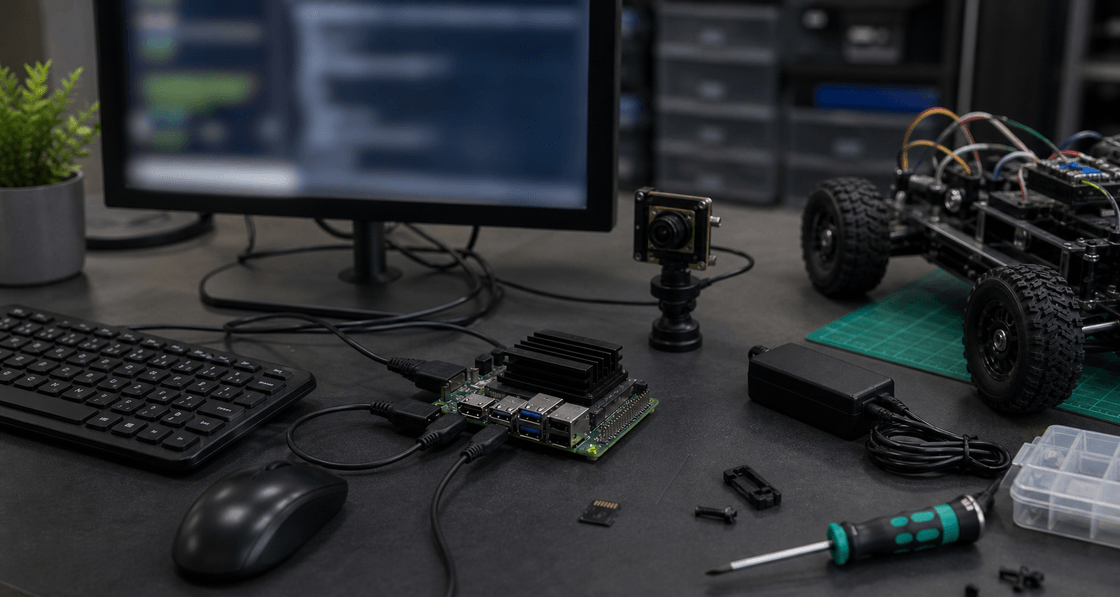
This guide covers practical setup and maintenance for the original NVIDIA Jetson Nano Developer Kit. It includes writing the JetPack image to a microSD card, first boot setup, SSH access, development tools, CUDA and TensorRT checks, power modes, thermals, Docker, camera checks, storage, backups, and remote development workflows.
For the original Jetson Nano, the safe baseline is JetPack 4.6.x. JetPack 4.6.4 with L4T 32.7.4 was released in June 2023 and supports Jetson Nano, bringing security fixes while keeping the JetPack 4.x software stack. JetPack 5.x does not support Jetson Nano, so do not try to install JetPack 5 on the original Nano. NVIDIA Developer Forums
1. Recommended software baseline
Use this baseline unless the project requires another version:
JetPack: 4.6.4
Jetson Linux / L4T: 32.7.4
Root filesystem: Ubuntu 18.04-based
Kernel: Linux 4.9
CUDA: 10.2
TensorRT: 8.2.x
cuDNN: 8.2.x
OpenCV: 4.1.1
VPI: 1.2
VisionWorks: 1.6
JetPack 4.6.1 includes the core JetPack 4.6 production stack with Linux kernel 4.9, Ubuntu 18.04-based sample filesystem, TensorRT 8.2.1, and L4T 32.7.1; later JetPack 4.6.x releases are security and maintenance updates on that same family. NVIDIA Developer
The original Jetson Nano should be treated as a JetPack 4.x device. Do not use normal Ubuntu release upgrades to force it onto Ubuntu 20.04 or newer.
Avoid:
sudo do-release-upgrade
2. Jetson Nano variants covered by this guide
This guide is primarily for the original Jetson Nano Developer Kit, usually the 4GB model with a microSD card slot on the module.
Common variants:
Original Jetson Nano Developer Kit, 4GB, microSD boot
Jetson Nano 2GB Developer Kit
Jetson Nano production module with eMMC
Third-party carrier boards using Jetson Nano modules
For the original microSD Developer Kit, the normal setup method is:
Download Jetson Nano SD card image.
Write the image to a microSD card.
Insert the microSD card into the Nano.
Boot and complete first setup.
NVIDIA's JetPack page lists an SD card image method for Jetson Nano Developer Kits, while SDK Manager is also available for Jetson devices generally. NVIDIA Developer
For eMMC production modules or some third-party carrier boards, setup may require SDK Manager, Force Recovery Mode, and an Ubuntu Linux flashing host. This guide focuses on the microSD Developer Kit first, because that is the normal original Jetson Nano Developer Kit workflow.
3. Host computer options
Unlike AGX Xavier, the original Jetson Nano Developer Kit usually does not require SDK Manager just to get started. Any host that can write a microSD image can prepare the boot card.
Use the section that matches the only host machine you have.
| Only host available | Best setup path |
|---|---|
| Linux PC | Write microSD image with Etcher, GNOME Disks, Raspberry Pi Imager, or dd |
| Windows PC | Write microSD image with balenaEtcher or Raspberry Pi Imager |
| Windows with WSL | Use Windows tools to write the microSD; use WSL for SSH and dev after boot |
| macOS | Write microSD image with balenaEtcher, Raspberry Pi Imager, or dd |
| eMMC Nano module | Use Ubuntu Linux host with SDK Manager |
4. Hardware checklist
Prepare:
Jetson Nano Developer Kit
microSD card, 32GB or larger recommended
microSD card reader
5V power supply
HDMI or DisplayPort monitor
USB keyboard and mouse
Ethernet cable or compatible Wi-Fi adapter
Host computer for writing the microSD image
NVIDIA's original getting-started material states that the Nano Developer Kit uses a microSD card as boot device and main storage, and older documentation lists 16GB UHS-1 as a minimum. In practice, use 32GB or larger because JetPack, packages, Docker images, models, and build artifacts can fill small cards quickly. Cloudinary
5. Power supply recommendation
Power quality matters a lot on the Jetson Nano.
Minimum simple setup:
5V 2A Micro-USB power supply
Recommended for development, cameras, USB devices, and heavier workloads:
5V 4A DC barrel jack power supply
J48 jumper installed
Center-positive 2.1 mm inner / 5.5 mm outer barrel plug
The Jetson Nano Developer Kit user guide lists the J25 barrel jack as a 5V⎓4A input and explains that J48 selects barrel-jack power instead of Micro-USB power. It also notes that the kit can be powered by Micro-USB when J48 is not connected, but heavier total loads should use the barrel jack. NVIDIA Developer
For serious development, use barrel-jack power. Many mysterious Nano problems are actually power problems.
Common power-related symptoms:
Random reboot
Black screen during boot
USB devices disconnecting
Camera instability
Wi-Fi adapter failing
Throttling under load
Corrupted microSD card after sudden power loss
6. Host path A: Linux host
Use this if your only host computer is Linux.
6.1 Download the Jetson Nano image
Download the Jetson Nano Developer Kit SD card image from NVIDIA's JetPack / Jetson Nano getting-started page.
After downloading, you should have an image archive such as:
jetson-nano-jp46x-sd-card-image.zip
The exact filename may vary by JetPack release.
6.2 Write the image using balenaEtcher or Raspberry Pi Imager
Install or open your preferred image writer.
Recommended GUI tools:
balenaEtcher
Raspberry Pi Imager
GNOME Disks
Select:
Image file: Jetson Nano SD card image
Target: microSD card
Action: Write / Flash
Eject the card safely after writing.
6.3 Write the image using dd
Use lsblk to identify the microSD device:
lsblk
Example device:
/dev/sdb
Unmount any mounted partitions:
sudo umount /dev/sdb*
If the image is zipped:
unzip jetson-nano-*.zip
Write the image:
sudo dd if=jetson-nano-*.img of=/dev/sdb bs=4M status=progress conv=fsync
Sync and eject:
sync
sudo eject /dev/sdb
Be extremely careful with dd. Writing to the wrong device can erase your main drive.
7. Host path B: Windows host
Use this if your only host computer is Windows.
7.1 Write the microSD image
Recommended tools:
balenaEtcher
Raspberry Pi Imager
Steps:
1. Download the Jetson Nano Developer Kit SD card image.
2. Insert the microSD card into the Windows PC.
3. Open balenaEtcher or Raspberry Pi Imager.
4. Select the Jetson Nano image.
5. Select the microSD card.
6. Flash the image.
7. Safely eject the microSD card.
Do not format the card after flashing if Windows asks. Windows may not understand the Linux partitions and may show a formatting prompt.
7.2 Windows development after boot
After the Nano boots, use Windows for remote development.
Recommended tools:
Windows Terminal
PowerShell
OpenSSH Client
VS Code
VS Code Remote SSH
Git for Windows
WinSCP
PuTTY for serial console if needed
SSH from PowerShell:
ssh anthony@JETSON_IP_ADDRESS
Copy files:
scp .\app.py anthony@JETSON_IP_ADDRESS:/home/anthony/projects/app.py
8. Host path C: Windows with WSL
Use this if your only host computer is Windows and you also use WSL.
For writing the microSD card, use Windows tools, not WSL.
Recommended setup:
Use balenaEtcher or Raspberry Pi Imager on Windows to write the card.
Use WSL for SSH, Git, rsync, Python scripts, and development after the Nano boots.
Install useful WSL tools:
sudo apt update
sudo apt install -y git openssh-client rsync vim tmux
SSH from WSL:
ssh anthony@JETSON_IP_ADDRESS
Rsync project files:
rsync -aAXH --info=progress2 ./project/ anthony@JETSON_IP_ADDRESS:/home/anthony/projects/project/
Do not use WSL as the microSD writer unless you know exactly how WSL is passing the block device through. Windows-native image writers are safer for this task.
9. Host path D: macOS host
Use this if your only host computer is a Mac.
9.1 Write the microSD image with a GUI tool
Recommended tools:
balenaEtcher
Raspberry Pi Imager
Steps:
1. Download the Jetson Nano Developer Kit SD card image.
2. Insert the microSD card.
3. Open the image writer.
4. Select the Jetson Nano image.
5. Select the microSD card.
6. Flash the image.
7. Eject the card safely.
9.2 Write the microSD image with dd
Find the disk:
diskutil list
Unmount it:
diskutil unmountDisk /dev/diskN
Use the raw disk path for better speed:
sudo dd if=jetson-nano.img of=/dev/rdiskN bs=4m status=progress
Eject:
diskutil eject /dev/diskN
Replace diskN with the actual microSD disk number. Choosing the wrong disk can erase your Mac's storage.
9.3 macOS development after boot
Install useful tools with Homebrew:
brew install git rsync
SSH:
ssh anthony@JETSON_IP_ADDRESS
Copy files:
scp ./app.py anthony@JETSON_IP_ADDRESS:/home/anthony/projects/app.py
Rsync project:
rsync -aAXH --info=progress2 ./project/ anthony@JETSON_IP_ADDRESS:/home/anthony/projects/project/
Use VS Code Remote SSH from macOS for editing directly on the Nano.
10. Insert microSD and boot
Insert the flashed microSD card into the slot on the underside of the Jetson Nano module.
Connect:
Monitor
Keyboard
Mouse
Ethernet, if available
Power supply
The NVIDIA getting-started guide says first boot can be done either with display, keyboard, and mouse attached or in headless mode from another computer. With display attached, insert the prepared microSD, connect peripherals, connect power, and the developer kit boots automatically. NVIDIA Developer
On first boot, complete:
NVIDIA Jetson software EULA
Language
Keyboard layout
Timezone
Username
Password
Computer name
APP partition size
Use the maximum APP partition size suggested unless you have a specific reason not to.
11. Headless first boot
Headless setup is useful when you do not have a monitor or keyboard.
For headless mode, NVIDIA notes that the Nano must be powered by the DC barrel jack because the Micro-USB port is needed for serial setup. The setup flow uses J48, the J25 barrel jack, the Micro-USB connection to the host computer, and a serial terminal at 115200 baud. NVIDIA Developer
Headless hardware setup:
1. Insert the flashed microSD card.
2. Install the J48 jumper.
3. Connect Micro-USB from Nano to host computer.
4. Connect 5V 4A barrel jack power to J25.
5. Open serial terminal on host.
Serial settings:
Baud rate: 115200
Data bits: 8
Stop bits: 1
Parity: none
Flow control: none
Windows:
Use Device Manager to find the COM port.
Use PuTTY, Tera Term, or Windows Terminal serial support.
macOS:
ls /dev/cu.usbmodem*
screen /dev/cu.usbmodemXXXX 115200
Linux:
ls /dev/ttyACM*
screen /dev/ttyACM0 115200
12. First system checks
After logging in:
cat /etc/nv_tegra_release
lsb_release -a
uname -a
df -h
lsblk -f
Expected general result:
Jetson Linux / L4T 32.7.x
Ubuntu 18.04-based root filesystem
Linux 4.9-based Tegra kernel
Check memory:
free -h
Check CPU:
lscpu
Check network:
ip addr
ping -c 4 google.com
13. Update the system safely
Update packages:
sudo apt update
sudo apt upgrade -y
sudo apt autoremove -y
Reboot if NVIDIA packages, kernel packages, or system libraries were updated:
sudo reboot
Do not run:
sudo do-release-upgrade
The Jetson software stack is tied to NVIDIA's L4T release, kernel, CUDA, TensorRT, and repositories. Treat the JetPack version as part of the platform.
14. Set hostname and timezone
Set hostname:
sudo hostnamectl set-hostname jetson-nano
Set timezone:
sudo timedatectl set-timezone America/Los_Angeles
timedatectl
15. Configure SSH
Install SSH server if needed:
sudo apt update
sudo apt install -y openssh-server
sudo systemctl enable --now ssh
Check status:
systemctl status ssh
Find IP address:
ip addr
From the host computer:
ssh anthony@JETSON_IP_ADDRESS
16. Configure SSH key login
On Linux, macOS, Windows PowerShell, or WSL:
ssh-keygen -t ed25519 -C "hi@anth.dev"
Copy key from Linux, macOS, or WSL:
ssh-copy-id -i ~/.ssh/id_ed25519.pub anthony@JETSON_IP_ADDRESS
For Windows PowerShell, show the public key:
type $env:USERPROFILE\.ssh\id_ed25519.pub
On the Nano, manually add the public key if needed:
mkdir -p ~/.ssh
chmod 700 ~/.ssh
nano ~/.ssh/authorized_keys
chmod 600 ~/.ssh/authorized_keys
After key login works, harden SSH:
sudo nano /etc/ssh/sshd_config
Recommended settings:
PermitRootLogin no
PasswordAuthentication no
PubkeyAuthentication yes
Validate:
sudo sshd -t
Restart SSH:
sudo systemctl restart ssh
Keep the current SSH session open and test a second login before closing anything.
17. Install baseline development tools
sudo apt update
sudo apt install -y \
  build-essential \
  cmake \
  git \
  curl \
  wget \
  vim \
  htop \
  tmux \
  rsync \
  unzip \
  python3-pip \
  python3-venv \
  python3-dev \
  pkg-config \
  v4l-utils \
  i2c-tools
For debugging:
sudo apt install -y \
  gdb \
  strace \
  ltrace
The Nano is storage-constrained, so avoid installing large packages unless you need them.
18. Check CUDA
Check CUDA:
nvcc --version
Check CUDA directory:
ls /usr/local/cuda
If nvcc is missing from PATH, add CUDA paths:
nano ~/.bashrc
Add:
export PATH=/usr/local/cuda/bin:$PATH
export LD_LIBRARY_PATH=/usr/local/cuda/lib64:$LD_LIBRARY_PATH
Reload:
source ~/.bashrc
Test again:
nvcc --version
19. Check TensorRT, cuDNN, OpenCV, and VPI
TensorRT:
dpkg -l | grep -i tensorrt
cuDNN:
dpkg -l | grep -i cudnn
OpenCV:
python3 - <<'EOF'
import cv2
print(cv2.__version__)
EOF
VPI:
dpkg -l | grep -i vpi
Do not casually mix CUDA, TensorRT, cuDNN, OpenCV, and PyTorch builds from different JetPack versions.
20. Build and run CUDA sample
If CUDA samples are installed:
cd /usr/local/cuda/samples/1_Utilities/deviceQuery
sudo make
./deviceQuery
Expected result:
Result = PASS
If samples are missing, install the relevant JetPack components or use a compatible CUDA sample source.
21. Configure power mode
Jetson Nano has two main software-defined power modes: 10W and 5W. The developer kit guide notes that these modes constrain CPU and GPU behavior to stay near the selected power budget. NVIDIA Developer
Check current mode:
sudo nvpmodel -q
Typical modes:
0: MAXN / 10W mode
1: 5W mode
Set 10W mode:
sudo nvpmodel -m 0
Set 5W mode:
sudo nvpmodel -m 1
For benchmarking:
sudo nvpmodel -m 0
sudo jetson_clocks
Show clocks:
sudo jetson_clocks --show
Use 10W mode and jetson_clocks only with good power and cooling.
22. Monitor thermals and performance
Run:
tegrastats
Or with a 1-second interval:
tegrastats --interval 1000
Watch:
CPU usage
GPU usage
RAM usage
Swap usage
Temperature
Clocks
Thermal throttling
Optional convenience tool:
sudo apt update
sudo apt install -y python3-pip
sudo pip3 install -U jetson-stats
sudo reboot
After reboot:
jtop
Use jtop for convenience, but record raw tegrastats output for benchmark logs.
23. Cooling and fan notes
The passive heatsink is enough for light workloads, but active cooling is recommended for sustained inference, camera processing, compiling, and benchmarking.
The developer kit user guide identifies the J15 fan header and notes PWM and tachometer support. NVIDIA Developer
Recommended for heavier work:
5V 4A barrel jack power
J48 jumper installed
Small fan attached to the heatsink
Good airflow
10W mode only when cooled
24. Python environment setup
Create project directory:
mkdir -p ~/projects
cd ~/projects
Create virtual environment:
python3 -m venv nano-env
source nano-env/bin/activate
python -m pip install --upgrade pip setuptools wheel
Install common packages:
pip install numpy scipy matplotlib
Be careful with PyTorch. Jetson Nano uses ARM64 and the NVIDIA JetPack CUDA stack. Normal x86 Linux wheels will not work.
Document:
JetPack version
Python version
PyTorch wheel URL
CUDA version
cuDNN version
TensorRT version
25. Swap file recommendation
The Nano has limited RAM. A swap file can help with builds and Python packages, but it is not a substitute for memory-efficient code.
Create a 4GB swap file:
sudo fallocate -l 4G /swapfile
sudo chmod 600 /swapfile
sudo mkswap /swapfile
sudo swapon /swapfile
Persist it:
echo '/swapfile none swap sw 0 0' | sudo tee -a /etc/fstab
Check:
free -h
swapon --show
Use swap carefully on microSD cards because heavy swapping can wear the card and make the system slow. For heavy development, use a high-quality microSD card or move workloads to external storage.
26. Docker setup
Check Docker:
docker --version
Check NVIDIA container packages:
dpkg -l | grep -i nvidia-container
Test Docker:
sudo docker run --rm hello-world
Add your user to the Docker group:
sudo usermod -aG docker $USER
Log out and back in.
Check:
groups
Use Jetson/L4T-compatible images, not normal x86 CUDA images.
Good image families:
nvcr.io/nvidia/l4t-base
nvcr.io/nvidia/l4t-ml
nvcr.io/nvidia/deepstream-l4t
Match the container tag to the JetPack/L4T version whenever possible.
27. Camera checks
For USB cameras:
ls /dev/video*
v4l2-ctl --list-devices
Test USB camera:
gst-launch-1.0 v4l2src device=/dev/video0 ! videoconvert ! autovideosink
For CSI cameras, the original Nano Developer Kit supports IMX219 camera modules, including Raspberry Pi Camera Module V2, through the CSI camera connector. The B01 carrier board has two CSI camera connectors. NVIDIA Developer
Check camera devices:
ls /dev/video*
Common camera issues:
Wrong ribbon cable orientation
Wrong CSI connector
Wrong camera module
Bad GStreamer pipeline
Insufficient power
Missing camera configuration
Using a camera driver built for another JetPack version
For CSI testing, many Nano examples use nvarguscamerasrc:
gst-launch-1.0 nvarguscamerasrc ! nvoverlaysink
28. GPIO, I2C, SPI, and Jetson-IO
The Jetson Nano has a 40-pin expansion header with GPIO, I2C, UART, SPI, and power pins. The user guide notes that signals use 3.3V logic and that L4T includes Jetson.GPIO plus the Jetson-IO utility for configuring special-function pins. NVIDIA Developer
Install tools:
sudo apt install -y i2c-tools
List I2C buses:
i2cdetect -l
Scan a bus:
sudo i2cdetect -y 1
Be careful scanning I2C buses connected to sensitive devices.
Run Jetson-IO:
sudo /opt/nvidia/jetson-io/jetson-io.py
Use Jetson-IO to enable hardware functions such as SPI when needed.
29. Network setup
Check interfaces:
ip addr
nmcli device status
Set static Ethernet IP using NetworkManager:
nmcli con show
Example:
sudo nmcli con mod "Wired connection 1" \
  ipv4.addresses 192.168.1.50/24 \
  ipv4.gateway 192.168.1.1 \
  ipv4.dns "1.1.1.1 8.8.8.8" \
  ipv4.method manual
Restart connection:
sudo nmcli con down "Wired connection 1"
sudo nmcli con up "Wired connection 1"
For robotics, camera streams, SSH development, and model testing, wired Ethernet is usually more reliable than Wi-Fi.
30. Storage cleanup
Check storage:
df -h
lsblk -f
Clean apt cache:
sudo apt autoremove -y
sudo apt autoclean
Find large directories:
sudo du -hxd1 / | sort -h
Common storage hogs:
Docker images
Build directories
Python caches
Datasets
Model checkpoints
Video recordings
TensorRT engine files
31. External USB storage
For datasets, Docker images, and model files, use external USB storage if the microSD card is filling up.
Check device:
lsblk
Format example:
sudo mkfs.ext4 -L nano-data /dev/sda1
Create mount point:
sudo mkdir -p /data
Find UUID:
sudo blkid /dev/sda1
Edit /etc/fstab:
sudo nano /etc/fstab
Example:
UUID=xxxxxxxx-xxxx-xxxx-xxxx-xxxxxxxxxxxx /data ext4 defaults,noatime 0 2
Test:
sudo mount -a
df -h
Do not edit /etc/fstab carelessly. A bad entry can slow or break boot.
32. Git and GitHub setup
Install Git:
sudo apt install -y git
Configure identity:
git config --global user.name "Anthony Kung"
git config --global user.email "hi@anth.dev"
git config --global core.editor "vim"
git config --global init.defaultBranch main
Use SSH keys:
ssh-keygen -t ed25519 -C "hi@anth.dev"
cat ~/.ssh/id_ed25519.pub
Add the public key to GitHub.
Test:
ssh -T git@github.com
Use SSH remotes:
git remote set-url origin git@github.com:username/repository.git
Avoid caching GitHub passwords for long periods. Use SSH keys or tokens.
33. Git LFS
Install Git LFS:
sudo apt install -y git-lfs
git lfs install
Track large model files:
cd /path/to/repository
git lfs track "*.pt"
git lfs track "*.onnx"
git lfs track "*.engine"
git lfs track "*.zip"
git add .gitattributes
git commit -m "Configure Git LFS"
Do not commit datasets, TensorRT engine files, checkpoints, or generated binaries directly into normal Git history.
34. Backup strategy
Back up at least:
/home
/etc
/opt
/usr/local/bin
Project directories
Model files
Training/inference configs
Custom systemd services
Custom udev rules
Camera configs
Jetson-IO pin configuration notes
Simple rsync backup:
rsync -aAXH --numeric-ids --info=progress2 \
  /home/anthony/ \
  user@backup-server:/backups/jetson-nano/home-anthony/
Back up system configuration:
sudo tar -czf jetson-nano-etc-backup.tar.gz /etc
Record versions:
cat /etc/nv_tegra_release > jetson-nano-version.txt
uname -a >> jetson-nano-version.txt
nvcc --version >> jetson-nano-version.txt
dpkg -l | grep -E "cuda|nvidia|tensorrt|cudnn" >> jetson-nano-version.txt
For important systems, clone the microSD card occasionally. A spare pre-flashed card can save a lot of time.
35. Create a project systemd service
Create a service:
sudo nano /etc/systemd/system/nano-app.service
Example:
[Unit]
Description=Jetson Nano Application
After=network-online.target
Wants=network-online.target

[Service]
Type=simple
User=anthony
WorkingDirectory=/home/anthony/projects/nano-app
ExecStart=/home/anthony/projects/nano-app/venv/bin/python main.py
Restart=on-failure
RestartSec=5

[Install]
WantedBy=multi-user.target
Enable it:
sudo systemctl daemon-reload
sudo systemctl enable --now nano-app
Check logs:
journalctl -u nano-app -f
36. Remote development workflow
Recommended workflow:
Use SSH for terminal access.
Use VS Code Remote SSH for editing.
Use tmux for long-running commands.
Use rsync or Git for code transfer.
Use Docker only when storage allows.
Use wired Ethernet for stable development.
Install tmux:
sudo apt install -y tmux
Start session:
tmux new -s dev
Detach:
Ctrl-b then d
Reattach:
tmux attach -t dev
37. Benchmarking checklist
Before recording performance numbers:
sudo nvpmodel -q
sudo jetson_clocks --show
tegrastats
cat /etc/nv_tegra_release
uname -a
Record:
JetPack version
L4T version
Power mode
Whether jetson_clocks is enabled
Input resolution
Batch size
Precision: FP32, FP16, INT8 if supported by workflow
Framework: PyTorch, TensorRT, ONNX Runtime, DeepStream
Camera source or test file
Thermal state
Fan behavior
Average FPS
Latency
Power supply type
For reproducible benchmark mode:
sudo nvpmodel -m 0
sudo jetson_clocks
tegrastats --interval 1000
Do not compare results from 5W mode and 10W mode as if they are equivalent.
38. Common problems
Nano does not boot
Check:
microSD image was written correctly
microSD card is inserted fully
Power supply is strong enough
HDMI/DP monitor is connected before power-on
Wrong image was not used
Card is not corrupted
Try:
Reflash the microSD card
Use a different microSD card
Use barrel-jack power with J48 jumper
Disconnect unnecessary USB devices
Use wired Ethernet
Windows asks to format the card
Do not format it.
Windows may not recognize the Linux partitions after flashing. Eject the card and insert it into the Nano.
Random shutdowns or reboots
Likely causes:
Weak Micro-USB power supply
Bad cable
Too many USB peripherals
No barrel-jack power under load
Thermal issue
Corrupted microSD card
Use:
5V 4A barrel jack power
J48 jumper
Active cooling
Better microSD card
Powered USB hub for peripherals
nvcc is missing
Check:
ls /usr/local/cuda
dpkg -l | grep cuda
Likely causes:
CUDA toolkit package was not installed
PATH was not configured
JetPack component installation is incomplete
Poor inference performance
Check:
sudo nvpmodel -q
sudo jetson_clocks --show
tegrastats
Common causes:
5W mode
Thermal throttling
Running FP32 instead of optimized TensorRT path
CPU preprocessing bottleneck
Camera pipeline bottleneck
Slow microSD card
Insufficient cooling
Weak power supply
Camera does not work
Check:
Ribbon cable orientation
Correct CSI connector
Camera model compatibility
Power stability
GStreamer pipeline
Whether another process is using the camera
Try:
ls /dev/video*
And:
gst-launch-1.0 nvarguscamerasrc ! nvoverlaysink
39. Final verification checklist
System:
cat /etc/nv_tegra_release
lsb_release -a
uname -a
hostnamectl
timedatectl
Network:
ip addr
ping -c 4 google.com
Storage:
df -h
lsblk -f
NVIDIA stack:
nvcc --version
dpkg -l | grep -E "cuda|tensorrt|cudnn|nvidia"
Power and thermals:
sudo nvpmodel -q
sudo jetson_clocks --show
tegrastats
SSH:
systemctl status ssh
Git:
git --version
git config --global --list
Docker:
docker --version
dpkg -l | grep -i nvidia-container
Camera:
ls /dev/video*
v4l2-ctl --list-devices
40. Operational notes
Use JetPack 4.6.4 as the default Jetson Nano baseline as of November 8, 2023.
Do not use JetPack 5.x on the original Jetson Nano.
Use the SD card image method for the original Jetson Nano Developer Kit.
Use SDK Manager only when working with eMMC modules, recovery workflows, or cases where the SD card image method is not enough.
Use Windows, WSL, macOS, or Linux to write the microSD image.
Use Linux SDK Manager only when an actual flash or recovery workflow requires it.
Use a good microSD card, preferably 32GB or larger.
Use barrel-jack power with the J48 jumper for serious workloads.
Use active cooling for sustained inference, camera workloads, compiling, and benchmarking.
Do not run normal Ubuntu release upgrades on Jetson Nano.
Do not mix random CUDA, TensorRT, cuDNN, PyTorch, and OpenCV packages without checking JetPack compatibility.
Use nvpmodel, jetson_clocks, and tegrastats when benchmarking.
Use external USB storage for datasets, Docker images, checkpoints, and model artifacts.
Record JetPack version, L4T version, power mode, clocks, thermal state, and model precision for every benchmark.